Get alerts when creators go live, for Chat Board messages, inbox messages and more. Works on iPhone and Android.
In the portal (owners and managers)
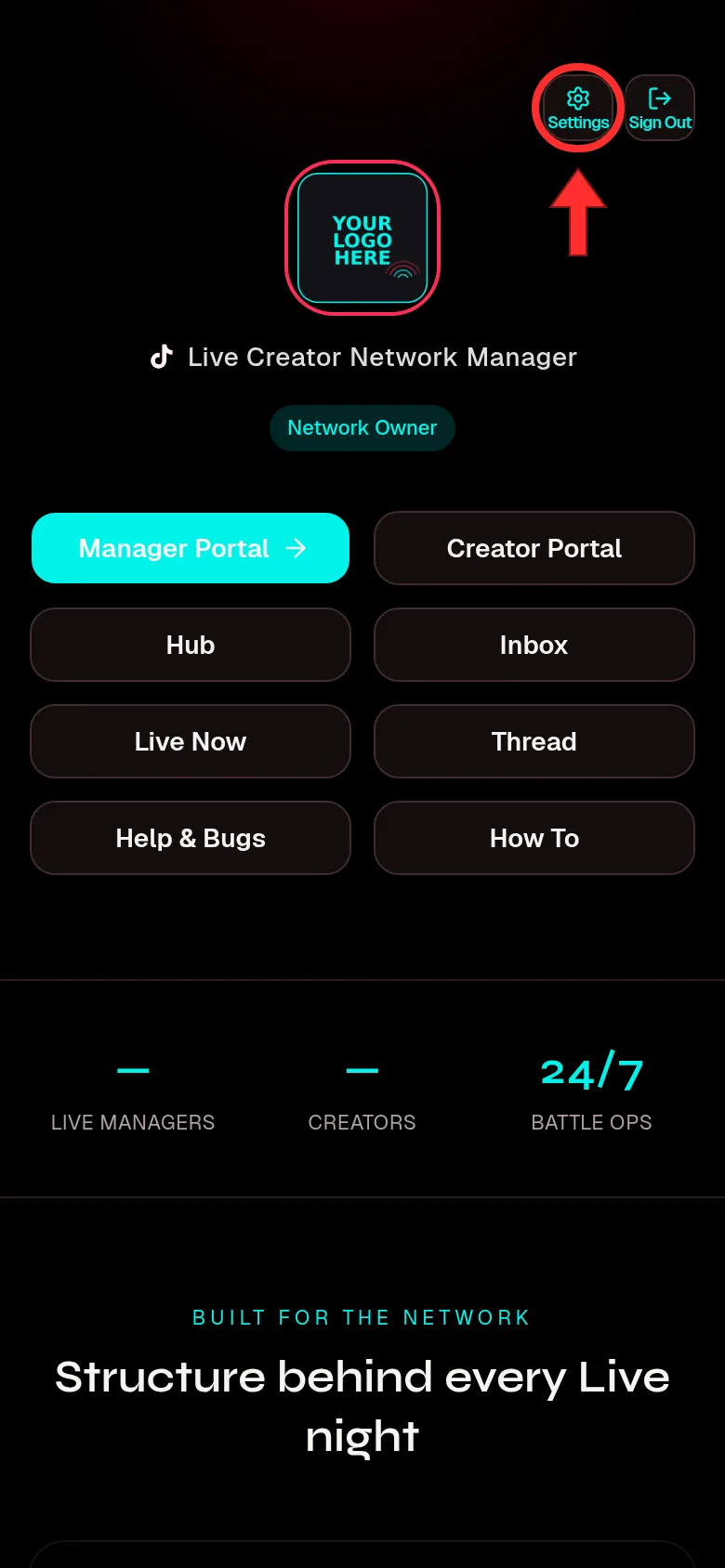
Open your desk's home page and tap Settings (the gear) in the top row.
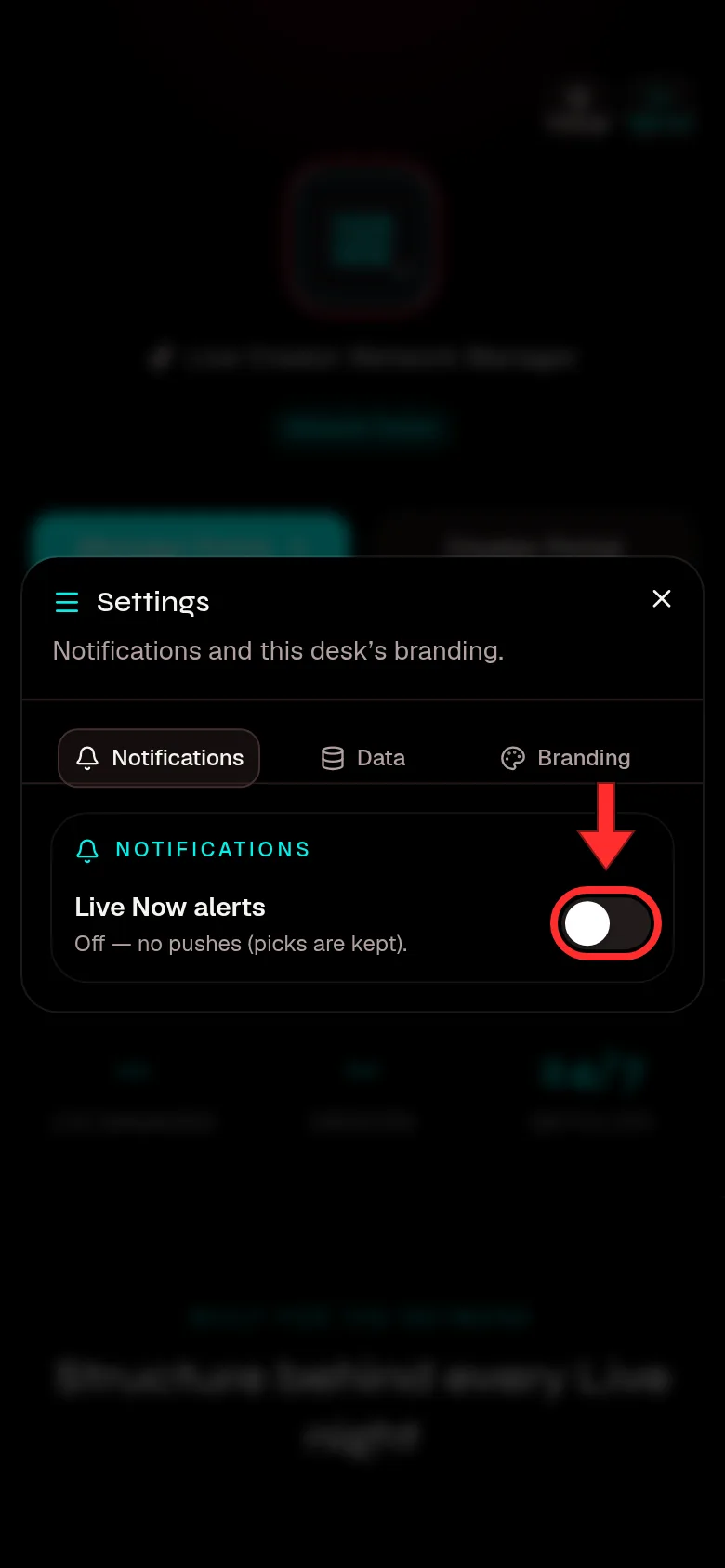
Settings opens on the Notifications tab. Turn on Live Now alerts. Your phone asks to allow notifications: tap Allow.
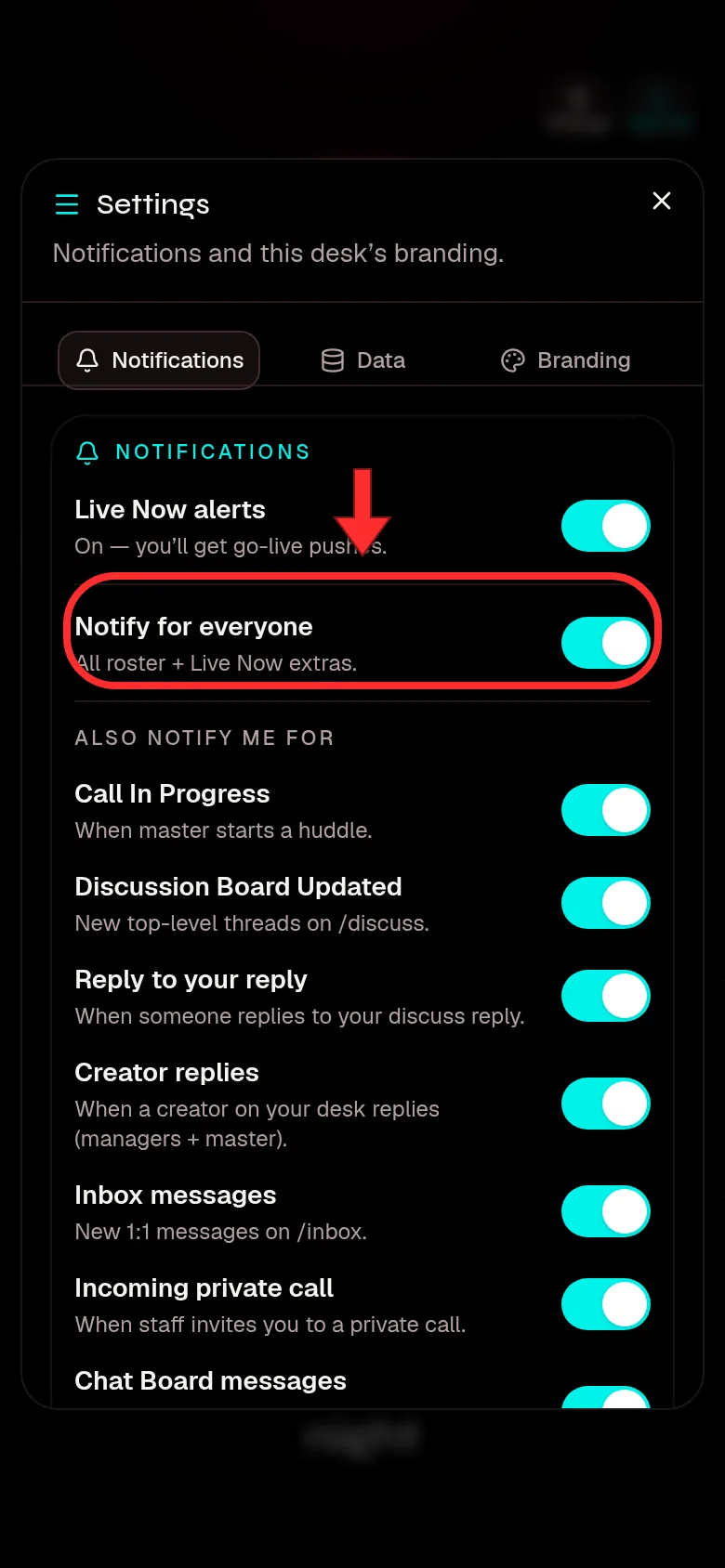
Notify for everyone starts on, so you get an alert for every creator who goes live. Turn it off to pick creators: a Creators list with a search box appears. Tick the creators you want.
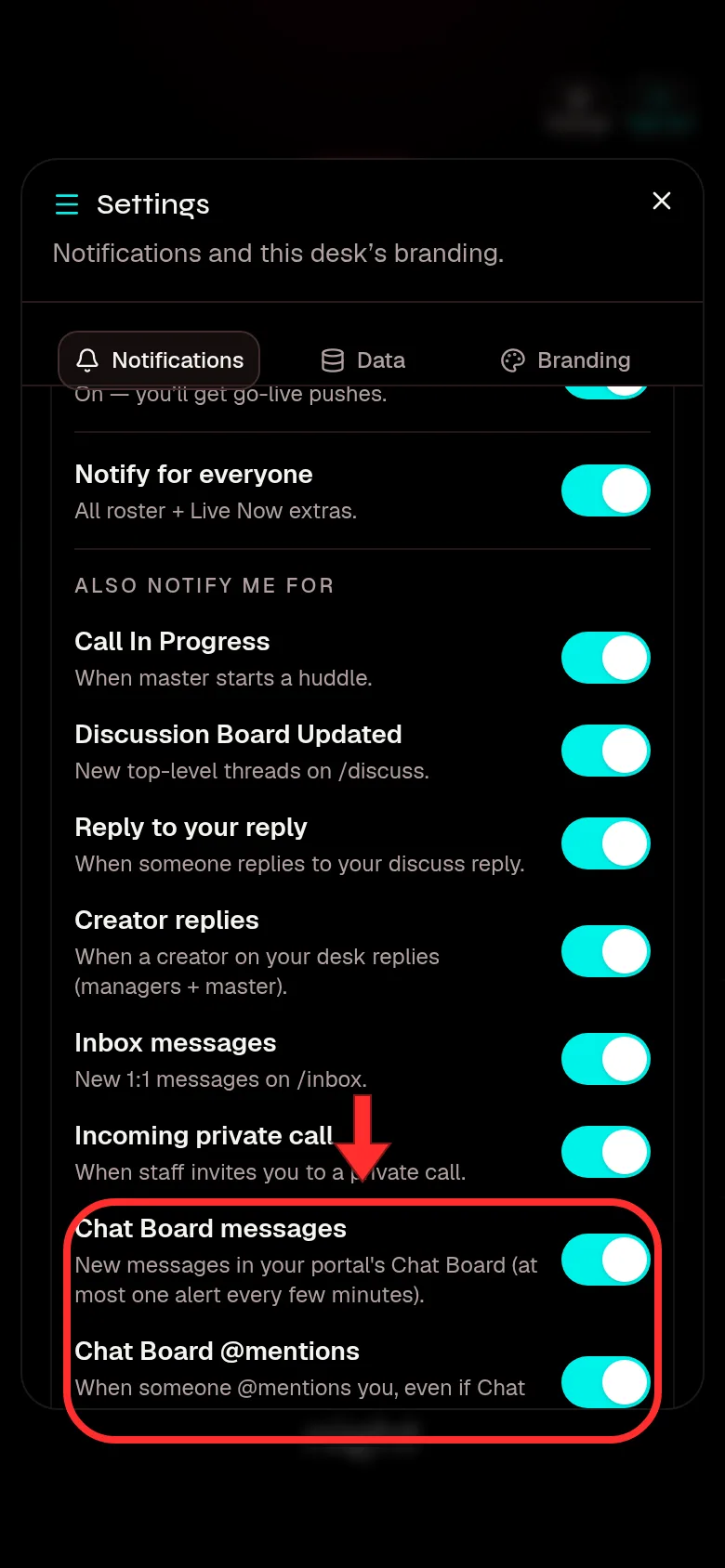
Under Also notify me for turn each alert on or off: Live now, Discussion Board Updated, Reply to your reply, Creator replies, Inbox messages, Incoming private call, Chat Board messages and Chat Board @mentions.
To stop all alerts, turn Live Now alerts off. Your creator picks are kept.
Chat Board messages send at most one alert every few minutes. Chat Board @mentions always reach you when someone mentions you. Battle reminders have no switch of their own: they come to a device with Live Now alerts on, for your battles, while you are signed in on that device.
Step 1: SettingsStep 2: Live Now alertsStep 3: Notify for everyoneStep 4: Chat Board and other alerts
iPhone
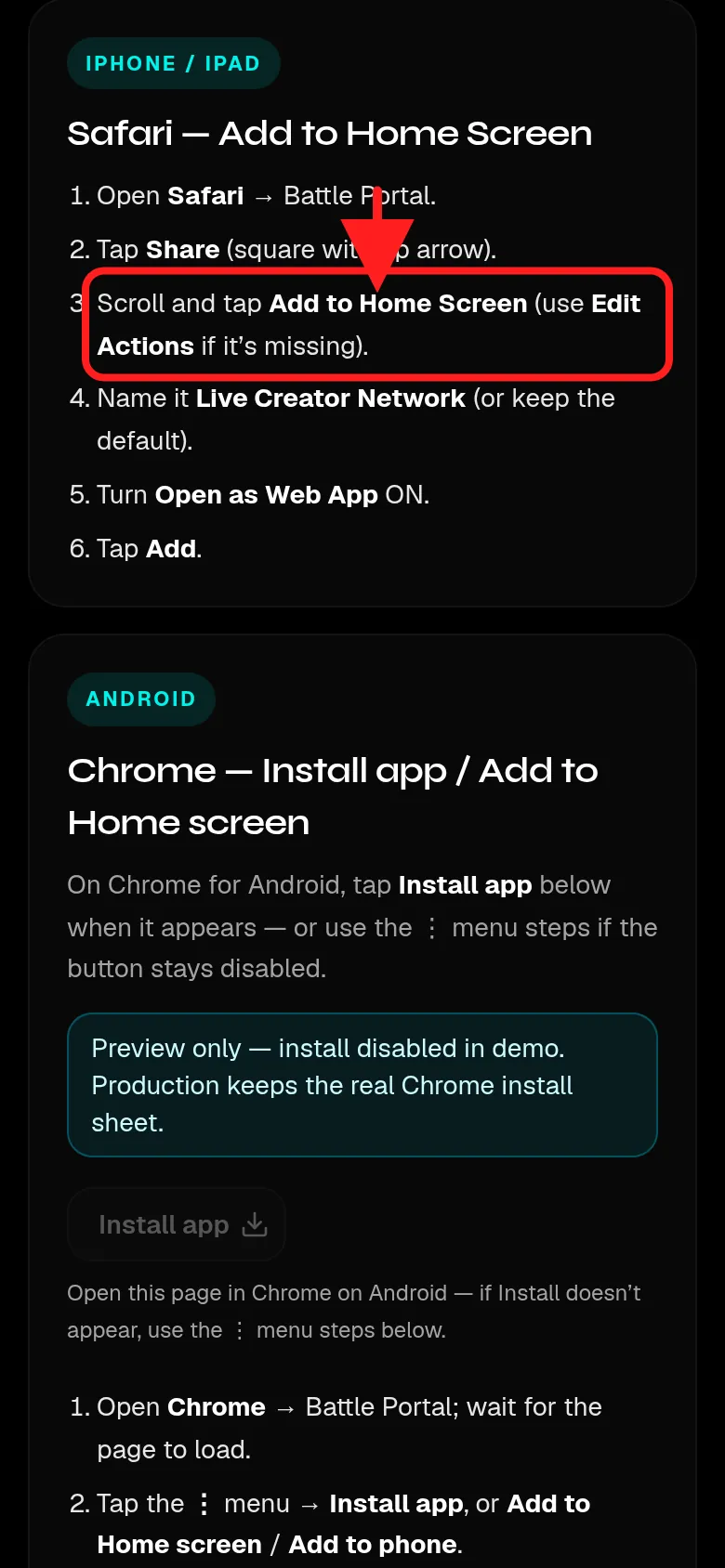
iPhone only allows notifications from an installed app. First install the portal: in Safari tap Share, then Add to Home Screen, keep Open as Web App on, and tap Add (see the install guide).
Open the portal from the icon on your Home Screen, not from Safari.
Tap Settings (the gear), then turn on Live Now alerts.
When iPhone asks to send notifications, tap Allow.
If you tapped Don't Allow, or the switch says it is blocked: open the iPhone Settings app, tap Notifications, choose the portal app and turn on Allow Notifications. Then reopen the portal app and turn Live Now alerts off and on again.
If the Settings box says "Push not supported here", you are in Safari or another browser. Open the Home Screen icon instead.
Install first (/install)
Android (Chrome)
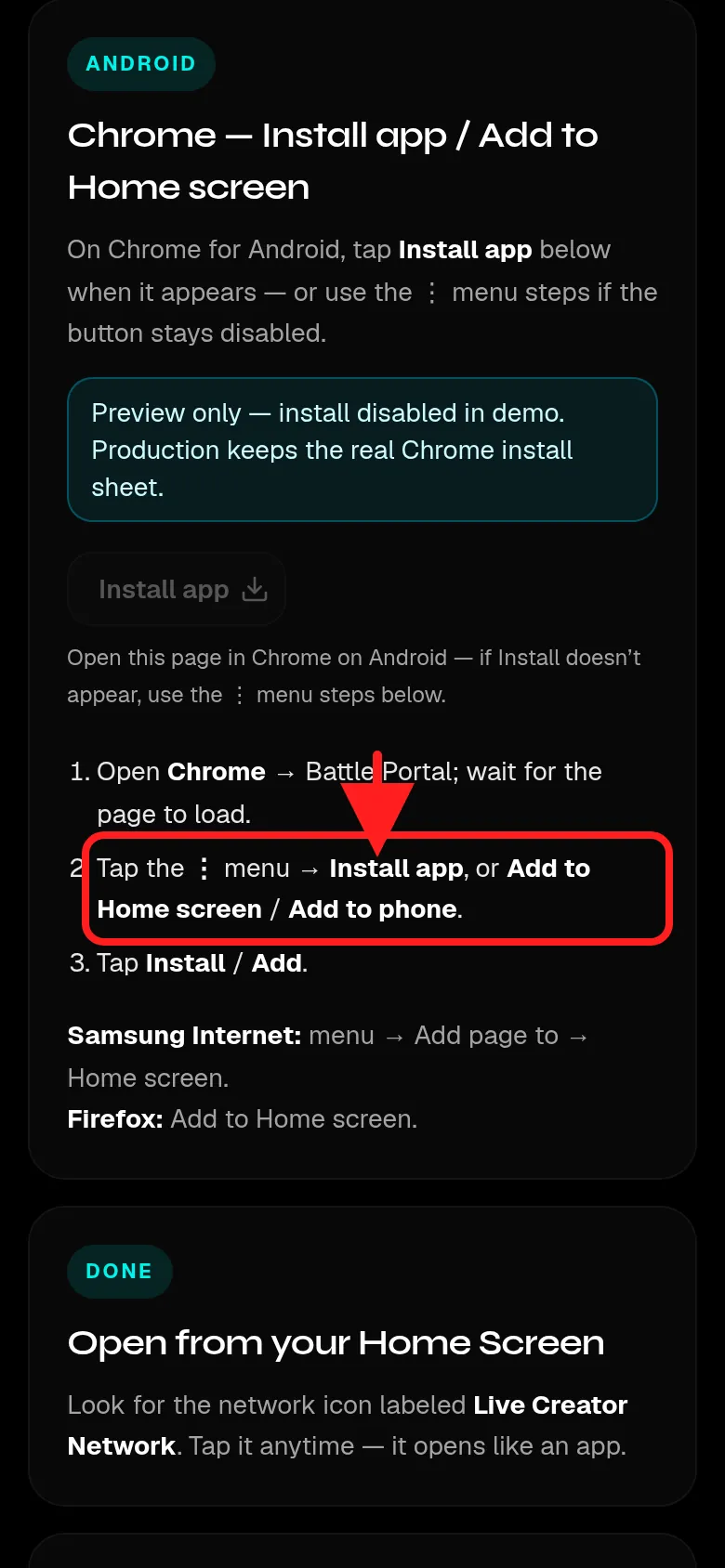
Open the portal in Chrome (or from the app icon if you installed it).
Tap Settings (the gear), then turn on Live Now alerts.
When Chrome asks to show notifications, tap Allow.
If it is blocked: in Chrome tap the lock (or settings) icon next to the address bar, open Permissions or Site settings, tap Notifications and choose Allow. Or open Android Settings, then Apps, pick the portal app (or Chrome), then Notifications and turn them on.
Reload the portal, open Settings and turn Live Now alerts off and on again.